DocumentationDesigning the book
Themes
The eighteen built-in book designs, how choosing one changes the whole book, and how to save a design of your own.
A theme is a complete book design: trim size, margins, typeface, type size, line spacing, how a chapter opens, what runs along the top of the page, where footnotes go. Choosing one applies all of it at once.
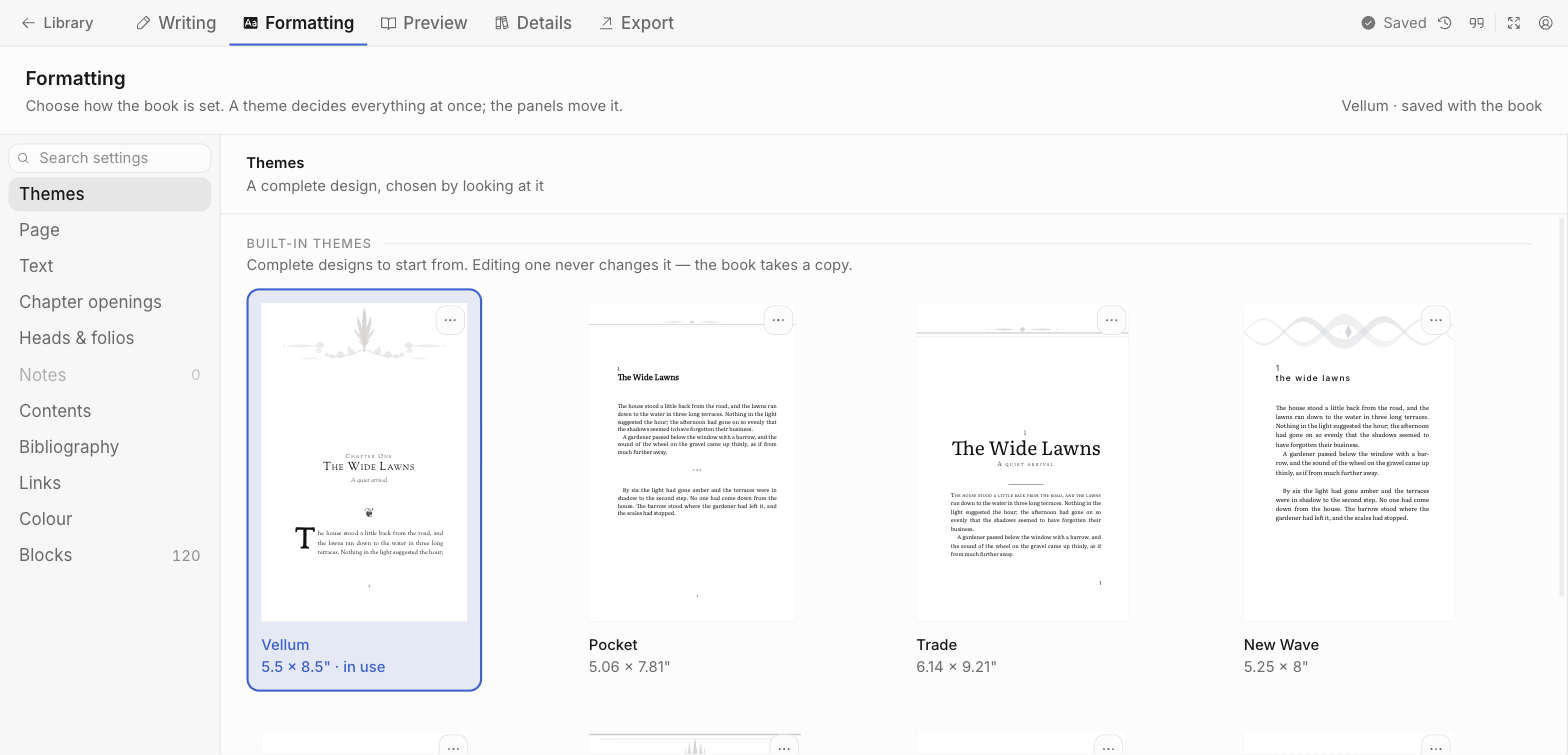
The eighteen
| Category | Themes |
|---|---|
| Fiction | Vellum, Pocket, Trade, New Wave, Thriller, Fantasy, Romance, Noir, Literary |
| Non-fiction | Archive, Essay, Memoir, History, Reportage, Handbook, Academic |
| Poetry | Poetry |
| Illustrated | Children’s |
Start in the category your book belongs to. Within a category the differences are real but small — mostly typeface pairing, trim size and chapter-opening treatment.
A few worth knowing:
- Vellum — 5.5 × 8.5″, Sorts Mill Goudy, drop cap, footnotes at the foot of the page. The default for fiction.
- Pocket — 5.06 × 7.81″ at 9.5pt. A mass-market paperback: small, tight, cheap to print.
- Academic — 6.14 × 9.21″, tighter line spacing, numbered chapter openings, footnotes at the page foot.
- Poetry — no hyphenation, no justification, no chapter numbers, deep sinkage. Line breaks belong to the poet.
- Children’s — 8.5 × 8.5″ square at 12.5pt, no running heads, no hyphenation.
Editing a theme
Change anything in the panels below Themes — trim size, typeface, margins — and the book takes a copy of the theme with your change in it. The built-in theme itself is never modified, so switching away and back gives you the original.
Once a book has changes of its own, the Themes panel says so and offers:
| Button | Does |
|---|---|
| Reset to theme | Discards your changes, back to the built-in design |
| Save changes | Updates your saved theme with the book’s current design |
| Save as new theme | Files the current design under a name of your own |
Your themes
A saved theme appears above the built-in ones and can be applied to any book. Its menu offers Rename, Duplicate and Delete.
Searching the panels
The field at the top of the panel list searches every setting by name, and by the word a typographer would use for it: ragged finds alignment, leading finds line spacing, gutter finds the inside margin.
Panels that dim
A panel governing something your book does not contain is dimmed and shows a zero — Notes on a book with no footnotes, Blocks on a book that is all prose.
Dimmed does not mean disabled. You can set how callouts will look before writing one; the setting applies to the first one you add.