DocumentationDesigning the book
Preview
The whole book laid out page by page, on paper or on a device — and what to look for before you export.
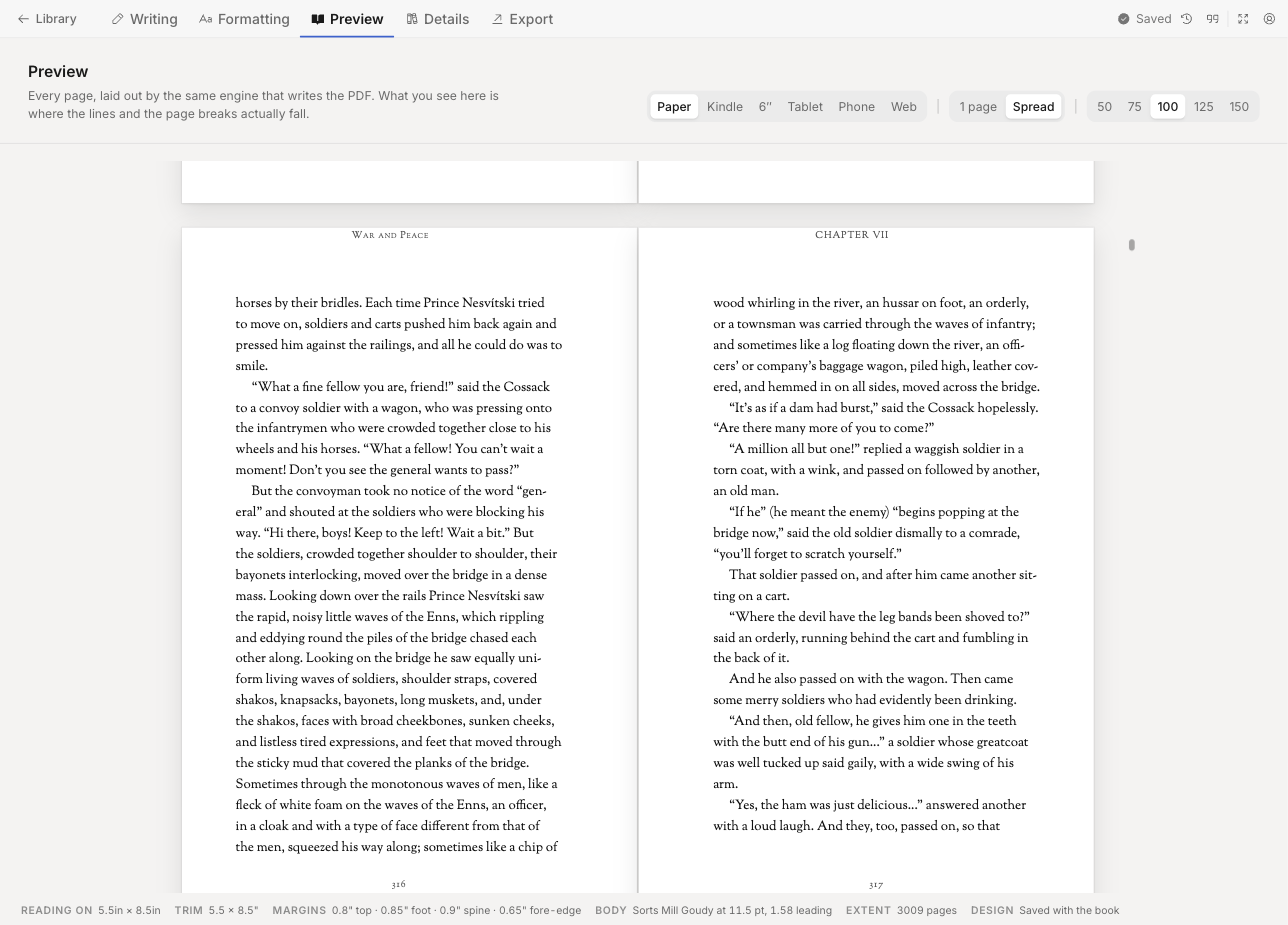
Every page, laid out by the same engine that writes the PDF. What you approve here is what the printer receives.
Reading device
| Device | What it shows |
|---|---|
| Printed book | Paper at its trim size |
| Kindle Paperwhite | An e-ink panel, pages turned sideways — set its text size to Largest to see the tightest measure a reader can ask for |
| Tablet | |
| Phone | |
| Browser window |
Paper shows what the PDF will be. The others show what the EPUB will be, which is a different question: no trim size, no margins of yours, and the reader’s own type size.
Arrangement
On paper you choose how pages are shown:
| Arrangement | For |
|---|---|
| Scroll the stack | Reading through quickly |
| One page at a time | Checking a single page |
| Facing pages | Checking a spread — how the book actually opens |
Use facing pages before you export. A chapter opening that falls on a left-hand page, a picture that lands opposite the wrong text, a blank verso you did not expect — none of these are visible one page at a time.
Reader’s text size
On a Kindle, the plus and minus in the toolbar are the reader’s own text buttons — Smaller text and Larger text — stepping through five sizes with the book’s own in the middle. There is no zoom on a device: a reader cannot magnify a Kindle, only change its type, and that is what re-breaks the lines and moves the chapter openings you are checking.
Moving through the book
The middle of the toolbar says where you are — the chapter, and on paper the page over the page
count. Press it to go somewhere else: type a page number, or a few letters of a chapter’s title,
and press Enter. ⌘G opens it from anywhere on the screen.
Every page of the book, small, runs down the right-hand side. The page you are on is framed, a chapter’s first page carries its name, and a click on any of them goes there. Put the strip away with Hide the pages when the window is narrow.
| Key | Does |
|---|---|
→ ←, Page Down Page Up |
Next and previous page |
Home End |
First and last page |
⌘G |
Go to a page or a chapter |
Scrolling over one page at a time or facing pages turns the page. Zoom in and out, or press the percentage to fit the page to the window.
About this page
The info button opens a panel of facts about what you are looking at:
| Row | Says |
|---|---|
| Reading on | The device |
| Trim | The page size |
| Margins | The four values |
| Body | Typeface and size |
| Extent | The page count — or “Reflowable” on a device, where there is none |
| Design | Whether the design is saved with the book or came from a theme |
What to look for
Before exporting, page through and check:
- Chapter openings on the right-hand page — the convention for a bound book, and the setting is in FormattingChapter openings
- Widows and orphans — a single line stranded at the top or bottom of a page
- Pictures that pushed text into an awkward break, or landed a page away from what they illustrate
- Blank pages you did not expect — usually a chapter forced to a recto
- The last page of the book — a chapter ending one line onto a new page reads as a mistake
Items 1, 2 and 4 are controlled in pagination.